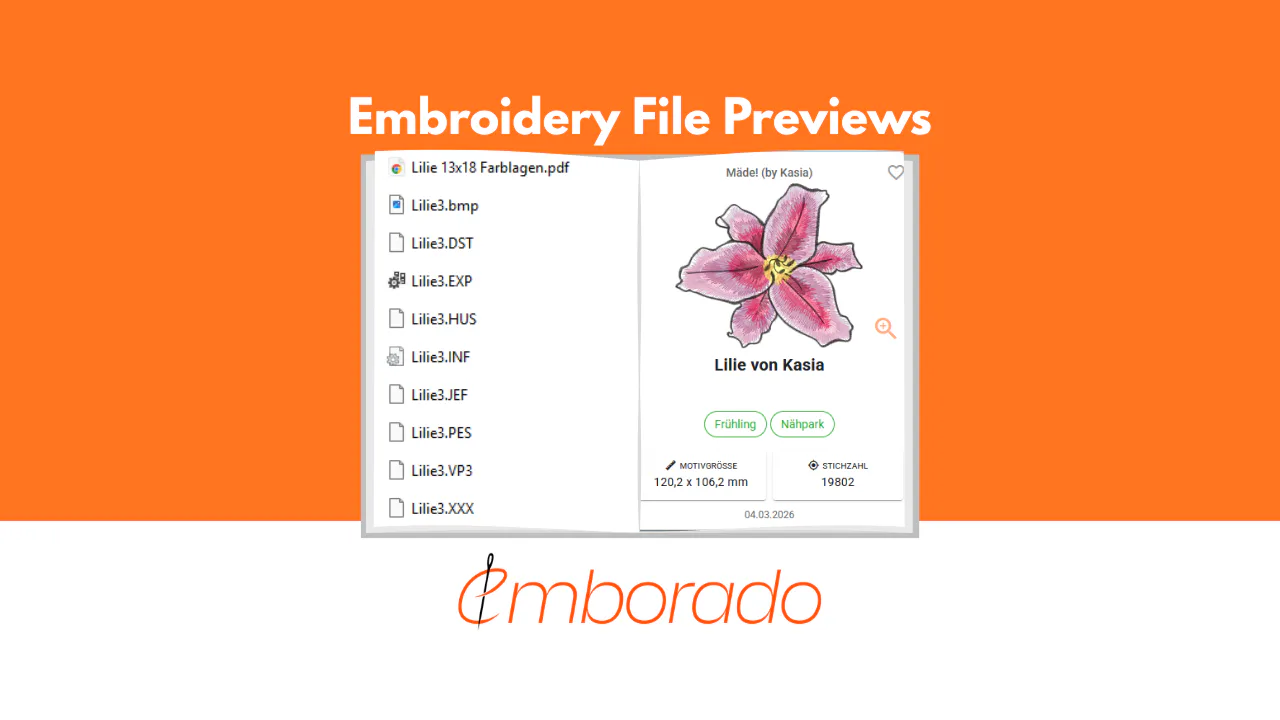
How to View Embroidery Files Online Without Installing Software
Open PES, DST, JEF, EXP or VP3 files online and see the design, size, stitch count and colors without installing embroidery software. Works on Mac, iPad, Android and Windows.
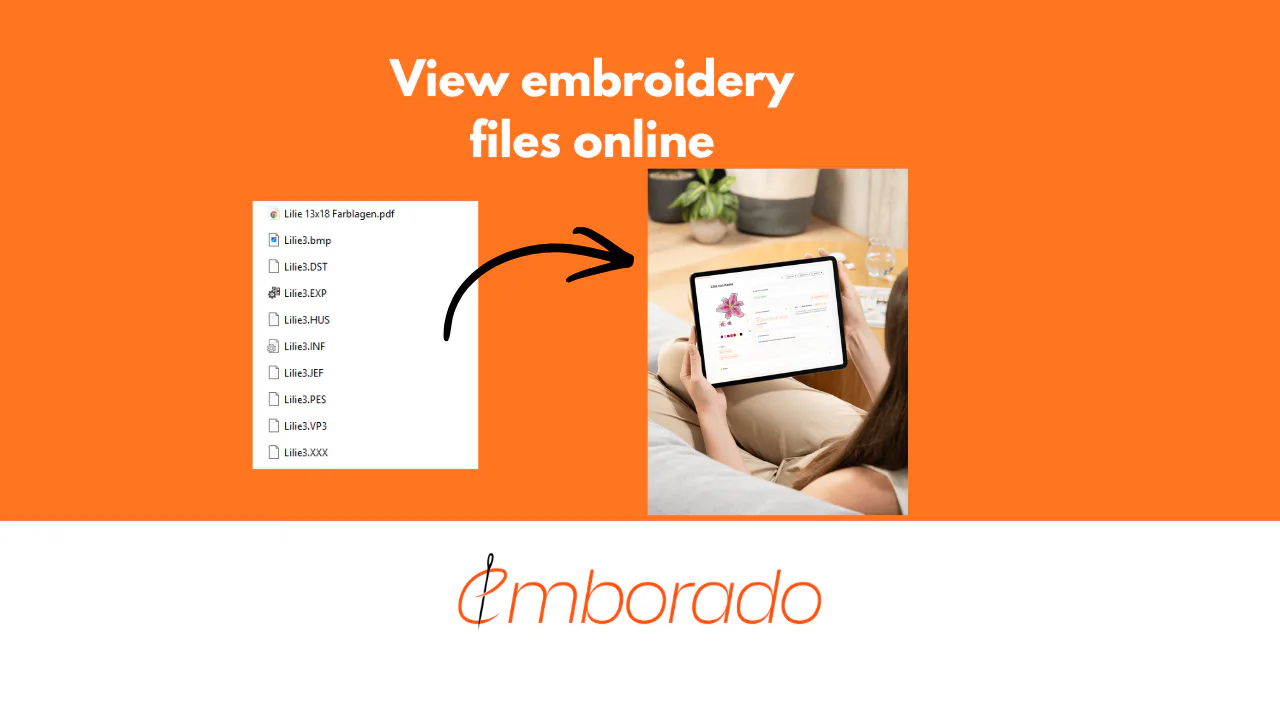
Someone sends you a PES file. Or you find a DST file in an old download folder, or a JEF file on a USB stick from a class. You double-click it, and nothing happens. Windows asks which program to use, macOS shows a blank icon, and your phone offers to share the file somewhere else.
Embroidery files are not images. They contain stitch instructions for a machine, and no operating system can draw them out of the box. For years the only way to see what was inside was to install embroidery software, which usually means Windows, a license, and a program built for editing rather than for quickly looking at a file.
This guide shows how to view embroidery files online, in the browser, on any device, and what you can see once the file is open.
Contents
- Why embroidery files do not open like images
- What an online viewer needs to show you
- How to open an embroidery file online in three steps
- Which formats you can view
- Viewing on Mac, iPad and Android
- When one file becomes a library
Why embroidery files do not open like images
A JPG stores pixels. A PES, DST or JEF file stores a sequence of needle movements, thread color changes, trims and jumps. To show you the design, a program has to read those instructions and draw the stitches one by one, the way the machine would sew them.
That is why Windows Explorer and the macOS Finder show a generic icon instead of a thumbnail, and why most embroidery files arrive with a separate JPG preview from the designer. If that JPG is missing, or the filename is something like design_127_final.pes, you have no way of knowing what the file contains without software that can render it. Our article on embroidery file previews explains the background in more detail.
An online viewer does the rendering on a server and shows you the result in the browser. Nothing is installed, and the device you are using does not matter.
What an online viewer needs to show you
Seeing the picture is the first step. In practice, you usually want to know a few more things before you send a file to the machine or decide whether to keep it.
The design itself, rendered from the stitch data, not from a preview image the designer may or may not have included.
Size in millimeters or inches, so you know whether the design fits your hoop. A design that looks small in a thumbnail can be 180 mm wide.
Stitch count, which tells you roughly how long the design will take to sew and how dense it is.
Thread colors and color changes, so you can prepare threads before you start and see how many stops the machine will make.
The file format and, ideally, related formats, because a purchased design often comes as a set of PES, DST, JEF and EXP files that all show the same motif.
A viewer that only draws the picture answers “what is this?”. A viewer that also reads the metadata answers “can I sew this, and with what?”.
How to open an embroidery file online in three steps
emborado works as an online viewer for embroidery files, and the viewing part is free. The steps:
- Create a free account at app.emborado.de. The free plan covers up to 100 designs with no time limit, which is more than enough for viewing individual files.
- Upload the file. Drag the PES, DST, JEF or other file into the browser window, or pick it from your phone or tablet. ZIP archives work too and are unpacked automatically, so a purchased set can go in as one file.
- Open the design. Within a few seconds the file shows up with a rendered preview, dimensions, stitch count and the color sequence. If you uploaded several formats of the same design, they are grouped as one design with all formats listed.
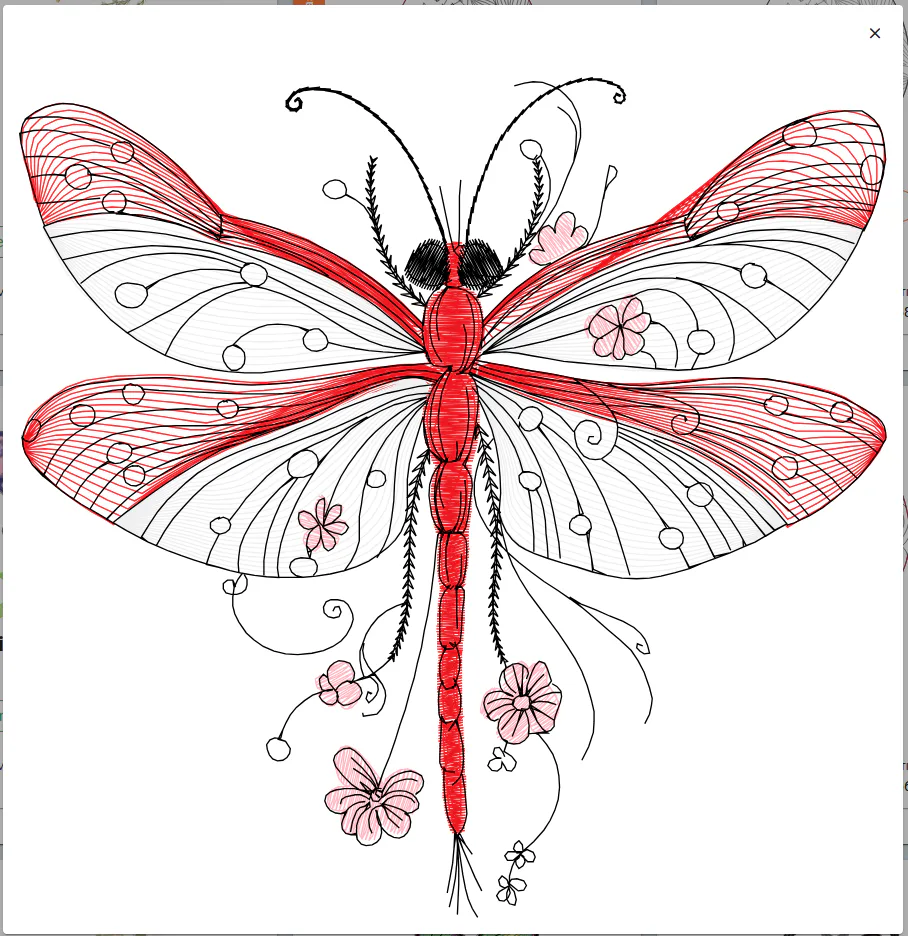
The file stays in your account afterwards, so you can open it again from any device. If you only wanted a quick look, you can delete it; if you keep it, you have the start of a searchable library.
Which formats you can view
emborado reads all common embroidery formats: PES and PEC (Brother, Babylock), DST and DSZ (Tajima, used by most commercial machines), JEF, JEF+ and SEW (Janome), VP3, VP4, VIP, HUS and SHV (Husqvarna Viking, Pfaff), EXP (Melco, Bernina), ART in all versions (Bernina), XXX (Singer), as well as PCS, PCD, PCQ, PCM, TAP, EMD, CSD, KSM and TBF. If you are not sure which format your machine needs, our overview of embroidery file formats explains which brand uses which.
Two notes on what viewing can and cannot do. Rendering shows the stitches as the file defines them; it does not simulate fabric, stabilizer or thread thickness, so the sewn result will look slightly denser than the preview. And an online viewer displays files, it does not convert them. If you need a PES file as JEF, you still need conversion software or the designer’s original set.
Viewing on Mac, iPad and Android
This is where an online viewer makes the biggest difference. Most embroidery software is Windows-only. If you work on a Mac, want to check a design on the iPad next to your machine, or receive a file on your phone, installing software is often not an option at all.
Because emborado runs in the browser, the same steps work on macOS, iPadOS and Android. On a phone or tablet, the upload button opens the file picker, and files from Mail, Messages or a cloud folder can be selected directly. For Android there is also an emborado app in the Play Store that opens the same library.
A practical use: a customer sends a logo file for a repeat order, you open it on the phone at the market stand, check stitch count and size, and quote a price without going back to the Windows PC in the workshop.
When one file becomes a library
Most people look for an online viewer because of a single file. After a few weeks, the folder of “files I had a look at” has become a second library next to the one on the computer, and the same question comes back: which of these do I actually own, and where is the fox from last fall?
That is the point where viewing turns into organizing. Everything you upload for viewing is already rendered and already has its metadata read, so adding tags, grouping designs into collections and letting the duplicate check catch files you already have costs no extra step. Our guide on how to organize embroidery designs covers how to move an existing collection over without sorting it first.
If you just want to see what is inside a file today, that works too, and it stays free.