Collections in emborado: organize related embroidery designs more easily
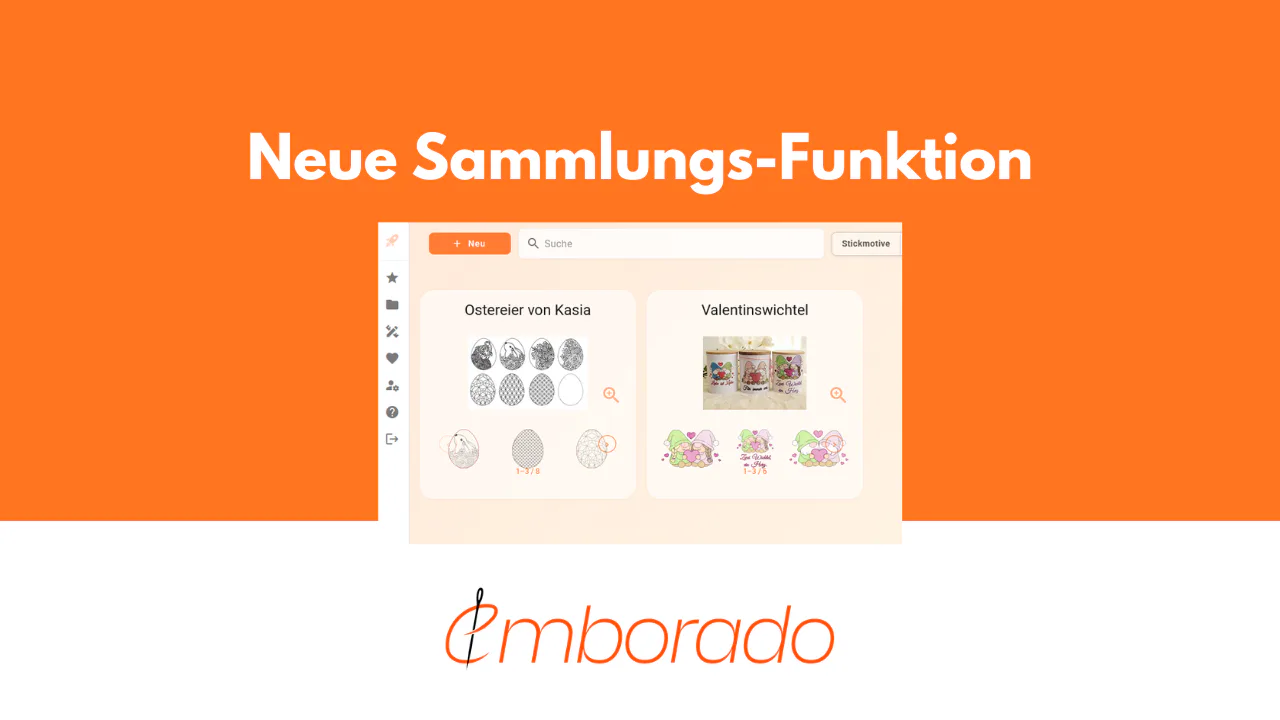
With the new collections feature, you can group related embroidery designs in emborado, add a display image, and store shared files such as instructions.
Anyone who manages many embroidery files with emborado probably knows the situation: some designs simply belong together.
These might be embroidery files from a series, several designs by the same designer, an alphabet, an Easter set, or another group of related motifs. Until now, these designs appeared in your overview, but the connection between them was not always immediately visible.
That is exactly what the new collections feature in emborado is for.
With collections, you can group related designs, display them clearly, and add extra files that are relevant to the entire collection.
What are collections in emborado?
A collection is a group of embroidery designs that belong together.
Typical examples include:
- embroidery files from one set
- alphabets
- design series with several variations
- related files with shared instructions
Especially with larger design libraries, this feature helps you keep a better overview. Instead of only seeing individual designs, you can organize entire groups of designs as one unit.
Where can I find collections?
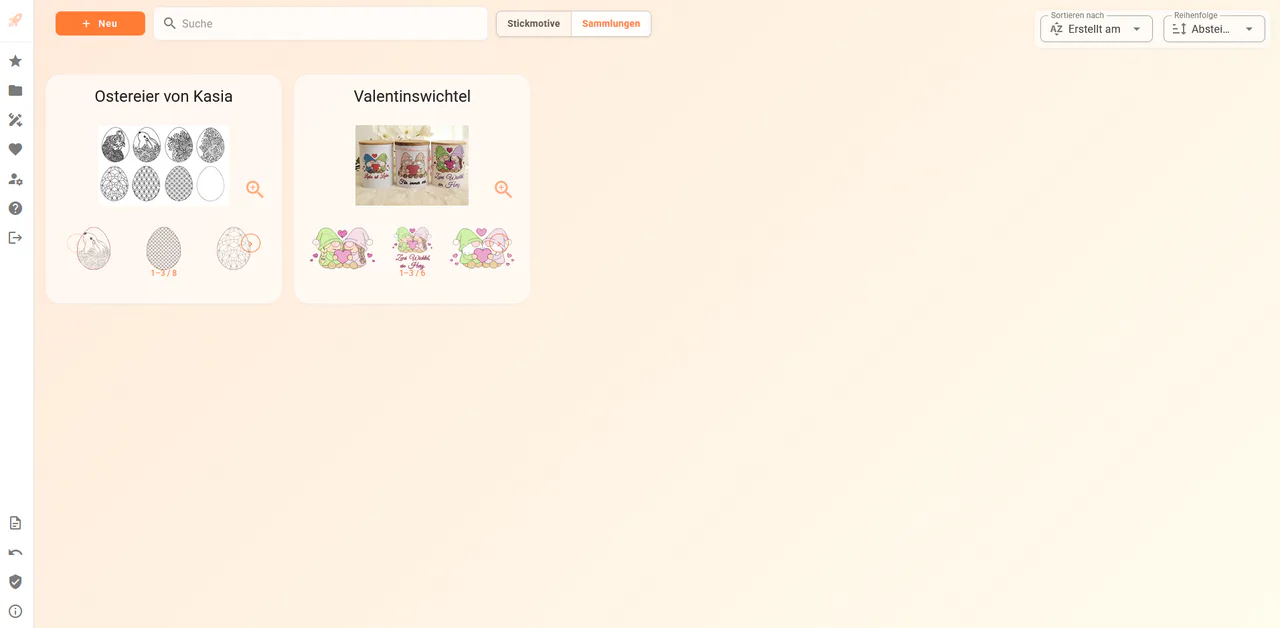
In the design list, you can switch between Embroidery designs and Collections in the top right corner.
Under Embroidery designs, you will find all your individual designs as usual. Under Collections, you will find the collections you have created.

How to create a new collection
1. Create a collection
To create a new collection, first switch to the Collections area.
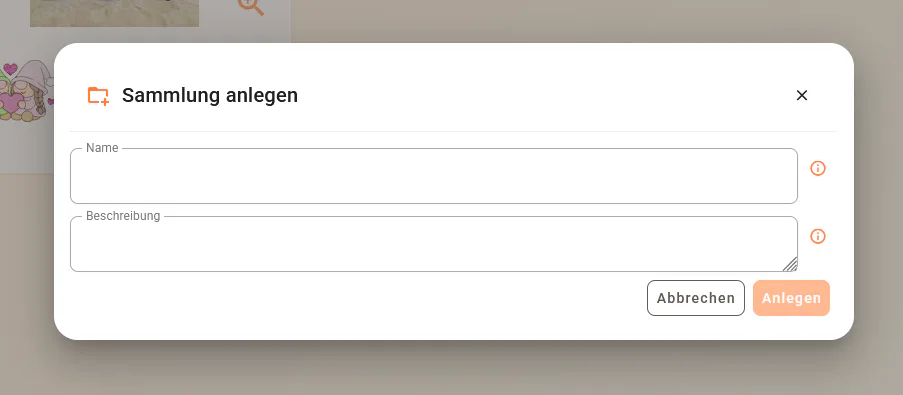
There, you can either click Create collection in the center or use the New button in the top left corner.
Then enter:
- a name for the collection
- a description
This helps you quickly recognize later which designs are included in the collection and what you want to use them for.
2. Add embroidery designs to the collection
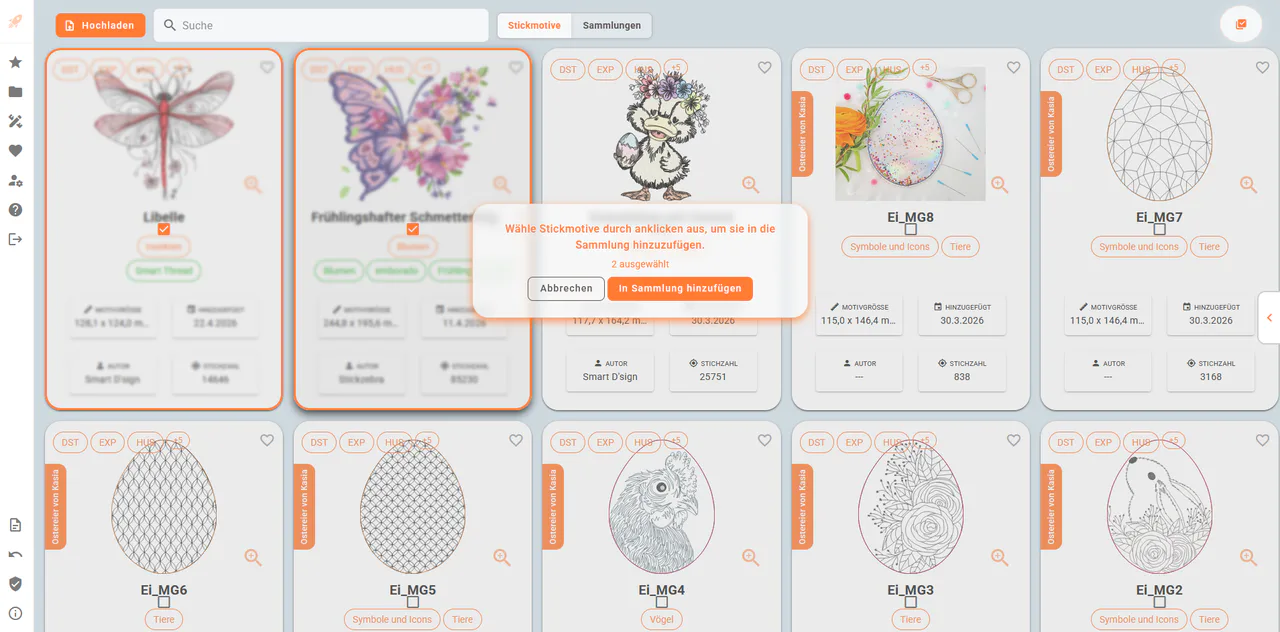
After creating the collection, you will be asked to select the embroidery designs that should belong to it.
Simply click the designs you want to add. Selected designs are visually highlighted. They appear slightly greyed out and receive an orange check mark in the center.
Once you have selected all the designs you want, click Add to collection.
3. View the collection
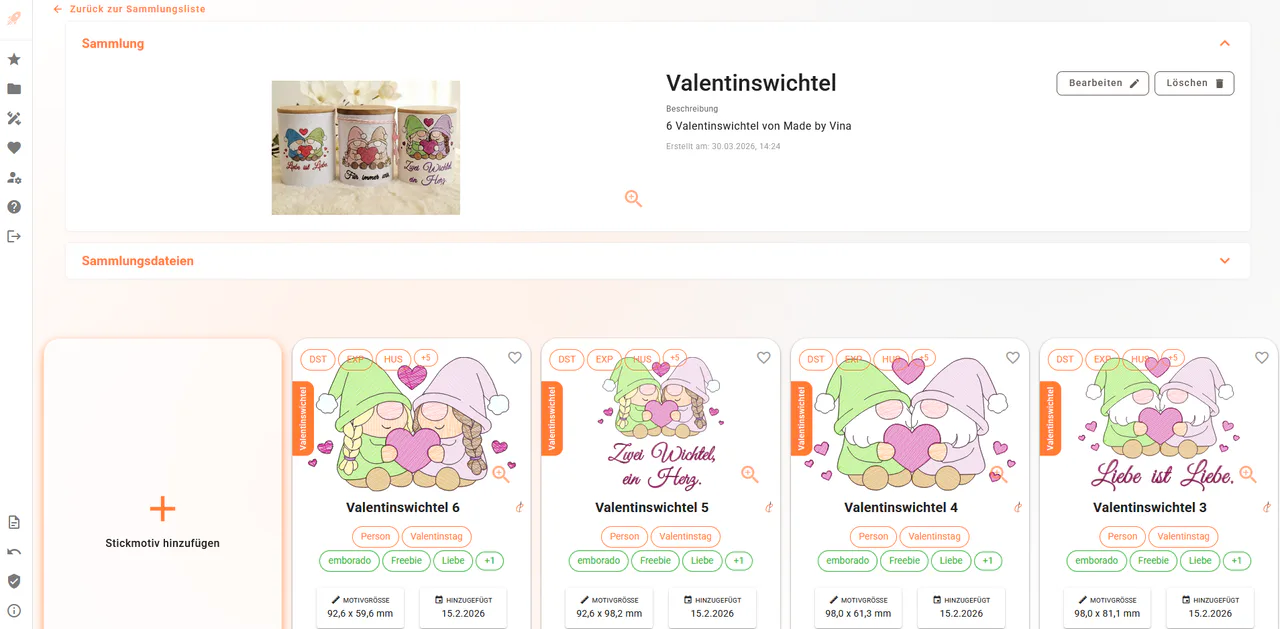
After adding the designs, the new collection opens. There you will find all the designs you just selected.
This means your related embroidery files are no longer only listed individually in your design overview, but are also grouped together in one place.
How to recognize designs that belong to a collection
Designs that are part of a collection are additionally marked in the design overview.
An orange strip with the name of the respective collection appears on the left side of the design. This lets you immediately see when a design belongs to a collection.
Upload a display image for a collection
You can also add a custom display image to a collection.
For example, this could be an image showing all designs from the collection together. This is especially useful for sets, because it helps you recognize the collection more quickly later.
To do this, click Upload display image in the collection and then select a suitable image file from your computer.
Add collection files
In addition to the individual embroidery designs, you can also store files that are relevant to the entire collection.
These could include:
- instructions
- license terms
- overview files
- color lists
- additional documents from the designer
To do this, click Add file in the collection and select the appropriate file.
Especially useful: PDF instructions can be viewed directly in the browser.
Alternative: create a collection directly from a design
There is also a second way to create a collection.
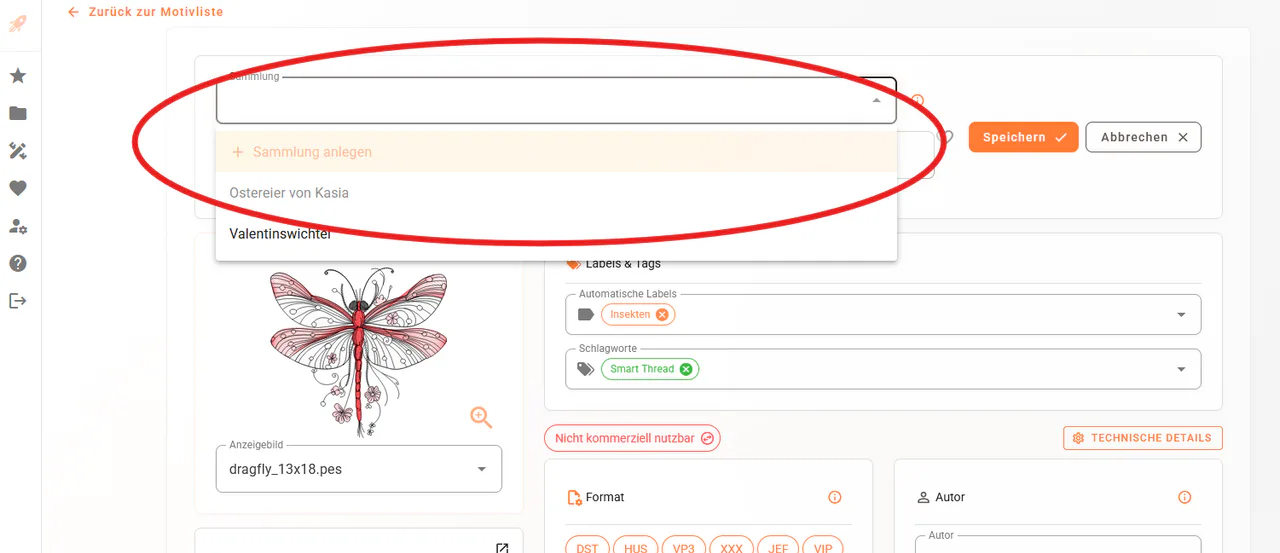
You can create a collection directly from the detail view of an embroidery design or assign a design to an existing collection.
To do this, open a design and click Edit in the top right corner. Above the design name, the new Collection field appears.
Here you can either:
- select an existing collection
- create a new collection directly
Add more designs to an existing collection
You can also add more designs to a collection later.
To do this, open the desired collection and click Add embroidery design.
You can then select the designs you want to add. The familiar search and filter functions are also available.
This is especially helpful if you want to find specific designs in a large library, for example all files from one designer.
The guide to searching by name and design content explains the available search methods. You can add shared tags to selected designs with bulk editing.
When are collections especially useful?
The new collections feature is useful whenever several designs belong together.
A classic example is alphabets. A set like this often consists of many individual files that together form one unit.
Design series, seasonal sets, or files from a particular designer can also be organized much more clearly with collections.
This helps you find related designs more quickly and keeps important additional files directly in the right place.
💬 We would love your feedback!
The collections feature is another step toward making emborado even better suited for large embroidery file libraries.
We are especially interested in:
- What kinds of designs do you use collections for?
- Which additional files would you like to store with collections?
- Are there any parts of the feature that could feel even easier to use?
Feel free to share your feedback with us directly. It helps us continue improving emborado and make organizing your embroidery files even easier.
Haven’t tried it yet?
Try emborado for free and organize your embroidery designs with the new collections feature:
app.emborado.de