Preview Images for Embroidery Files: How to View PES, DST, JEF & More
No thumbnails for your PES, DST or JEF files? Learn why embroidery previews are often missing and how to browse and organize your designs visually.
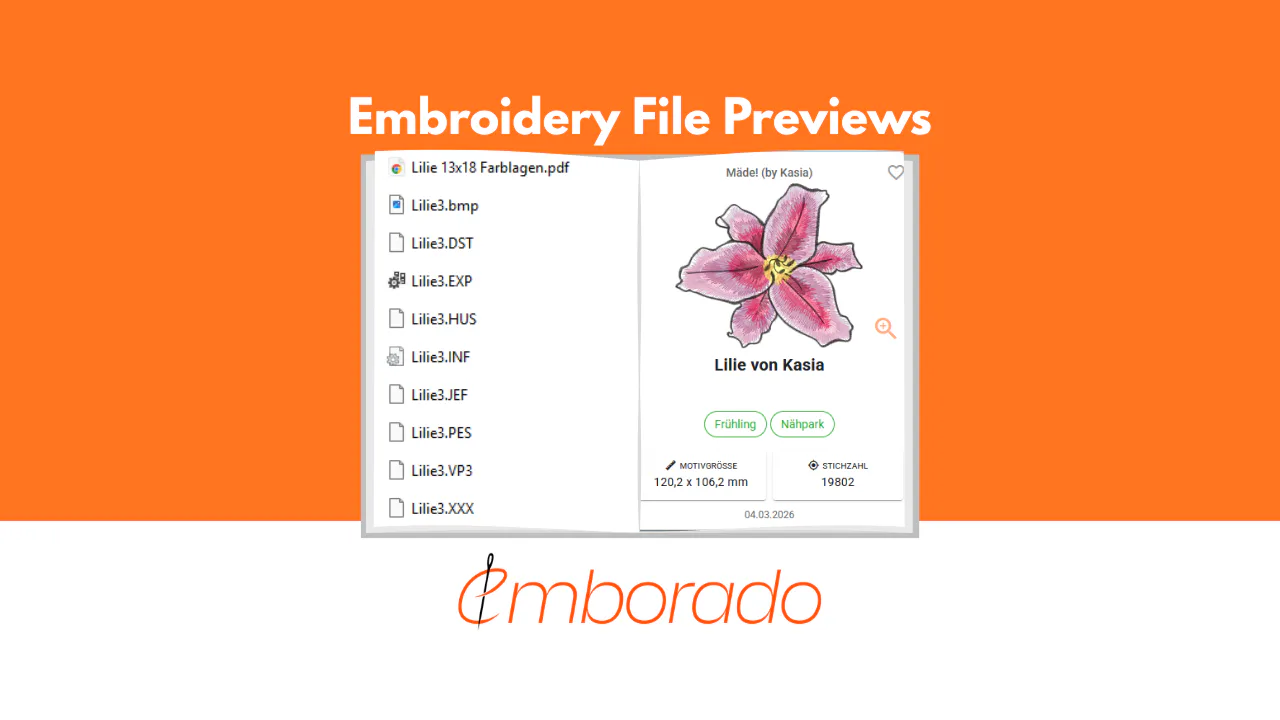
You open a folder full of embroidery files and see names like Flower_01.pes, Design_final.dst or design123.jef. But you cannot tell what any of the designs actually look like.
Many embroiderers know this problem. Windows and macOS show small thumbnails for photos, but many embroidery file formats need extra software before you can see a preview. As your library grows, finding the right design becomes increasingly difficult.
In this article, we explain why embroidery file previews are often missing and how you can browse PES, DST, JEF, EXP and other embroidery files visually.
Why do my embroidery files have no thumbnails?
When you open a folder of photos, Windows and macOS can read formats such as JPG and PNG directly. That is why you can usually see what each file contains straight away.
Embroidery files work differently.
Formats such as PES, DST, JEF, EXP and VP3 are not ordinary image files. They primarily contain instructions for an embroidery machine, including stitch movements, color changes and other technical details.
Windows File Explorer and macOS Finder often cannot turn these instructions into a picture by default. Instead of a preview, you see a file icon and a filename.
That may be manageable with ten files. With hundreds or even thousands of designs, it soon becomes a problem.
Which embroidery file formats are affected?
The formats you encounter depend on your embroidery machine and its manufacturer. Common examples include:
- PES, used by Brother, among others
- JEF, used by Janome, among others
- VP3, used by Pfaff and Husqvarna Viking, among others
- DST, originally developed by Tajima and now widely used
- EXP, another common embroidery format
There are many more formats besides these.
Our guide to embroidery file formats and why there are so many explains the differences in more detail.
Why filenames are not enough for a large library
Embroidery files are often purchased or downloaded in sets. A folder might look like this:
Fox_01.pes
Fox_01.dst
Fox_01.jef
Fox_02.pes
Fox_02.dst
Fox_02.jef
If you are lucky, the folder also contains JPG previews. Sometimes there are none, or it is unclear which image belongs to which design.
Filenames are not always particularly descriptive, either. A few months later, you may no longer remember what is inside Design_127_final.pes.
This is where previews help.
Instead of remembering filenames or folder structures, you can browse your library visually and recognize the design you want.
Option 1: Open each file in embroidery software
One option is to open an embroidery file in software that supports its format.
You can then view the design and check whether it is the one you are looking for.
This works well for a single file. Searching through a large library, however, soon becomes tedious. You have to open a file, inspect the design, close it and then open the next one.
If you simply want to see which designs are in a folder containing hundreds of files, this is not a convenient way to browse.
Option 2: Save separate preview images alongside your files
Some designers include JPG or PNG images with their embroidery files.
You can store these alongside the embroidery files to give yourself a visual reference.
However, you then need to make sure that the embroidery file and its preview always stay together.
Moving a folder, renaming a file or reorganizing a design can break that connection.
For large libraries, keeping everything matched adds extra work.
Option 3: Generate previews automatically from embroidery files
A more convenient approach is to generate the preview directly from the embroidery file.
This is the approach emborado uses.
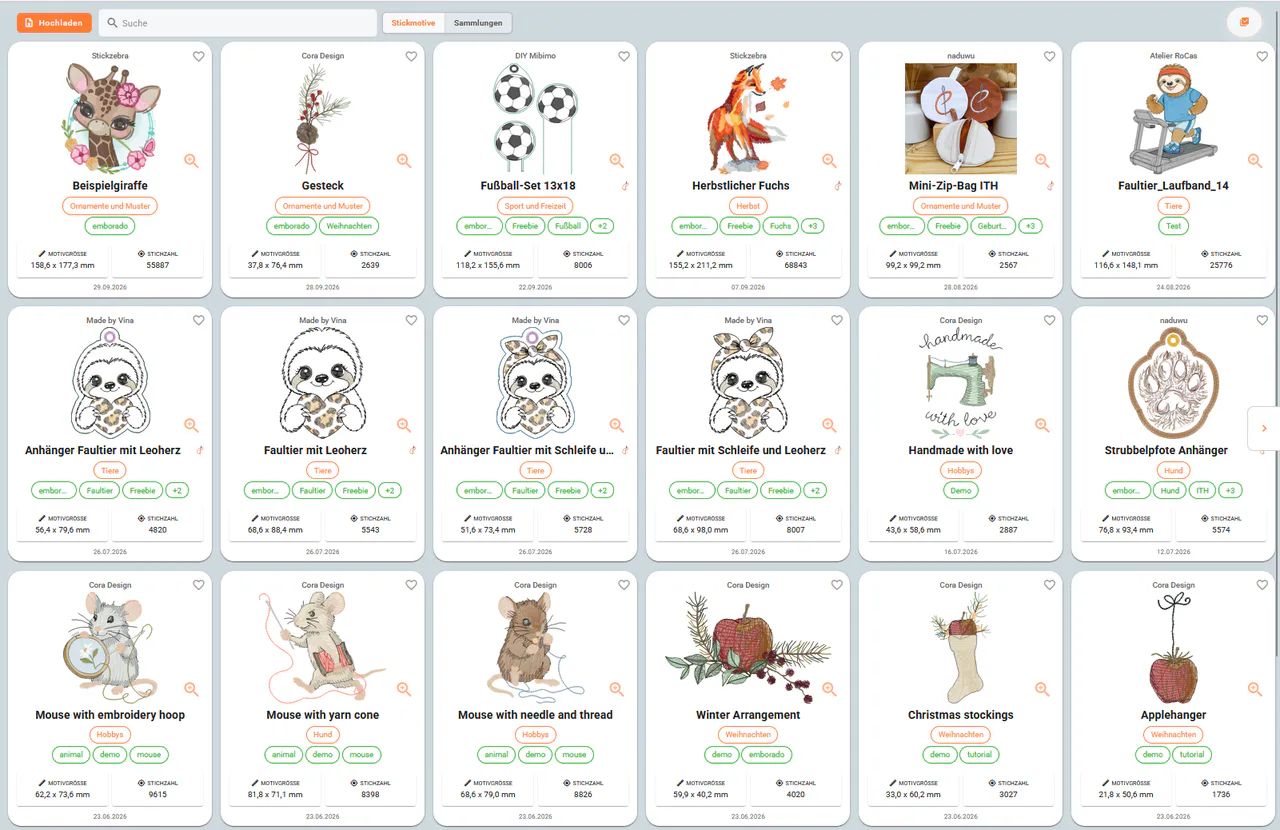
When you upload your embroidery designs to emborado, they are processed and then displayed with a preview in your library.
Instead of a list of cryptic filenames, you get a visual overview of your designs.
This makes a real difference with a large library. You can browse your designs much as you would browse a photo library.
More than a preview image
A preview helps you recognize a design quickly. But images alone are often not enough to keep an embroidery library well organized.
That is why emborado also reads information from supported embroidery files during upload and displays it alongside the design. Depending on the file, this may include:
- Design dimensions
- Stitch count
- Colors used
- Included embroidery files
You can also add your own details, such as tags, designers and notes, and organize designs into collections.
This means you can both see a design and find it later using search and filters.
One design can contain several embroidery files
There is another detail to consider when organizing embroidery files.
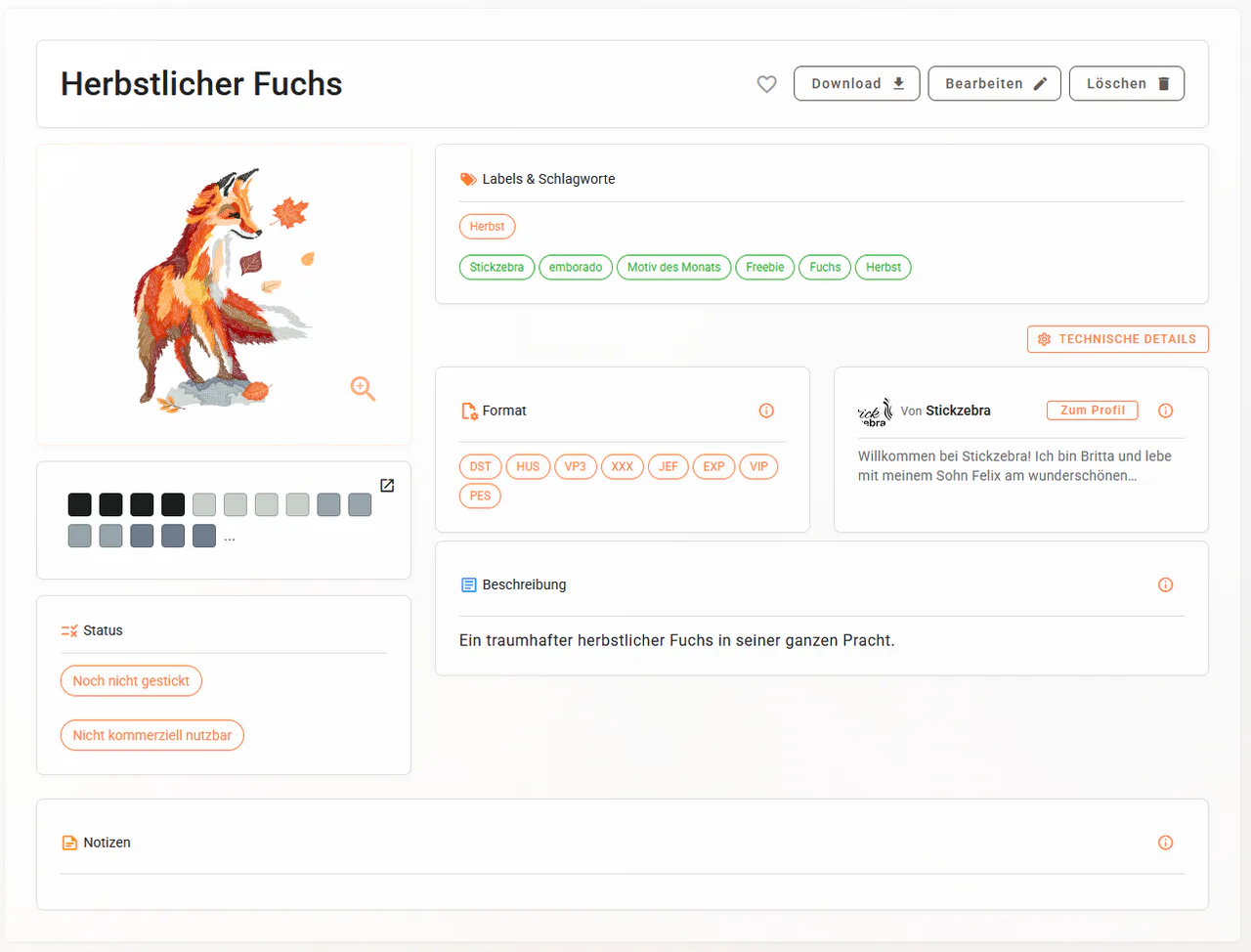
A purchased design often comes as more than one file. The same design might be supplied in PES, DST, JEF and EXP formats.
These are not four different designs. They are different file formats for the same design.
In emborado, you can manage these files together as one design. Our best practices for creating designs explain how to keep related files together.
This keeps your overview from filling up with several versions of the same design. The individual formats remain available whenever you need them for different embroidery machines.
Previews become especially useful as your library grows
The larger your library becomes, the harder it is to rely on folders and filenames alone.
Imagine you are looking for a small fox for an autumn project.
With a traditional folder structure, you first need to remember where you saved it. Perhaps under:
Animals > Woodland animals
or
Autumn > Children
or
Designers > Design Studio
or perhaps
Purchased files > 2024.
A visual overview lets you recognize your designs directly.
It becomes even more useful when previews are combined with additional information and search.
With emborado’s intelligent, content-based search, for example, you can search for a design even if you no longer remember its original filename.
Do I need to reorganize my existing folders first?
No.
If you have built up a large embroidery library over the years, manually renaming or reorganizing thousands of files before getting started would be a lot of unnecessary work.
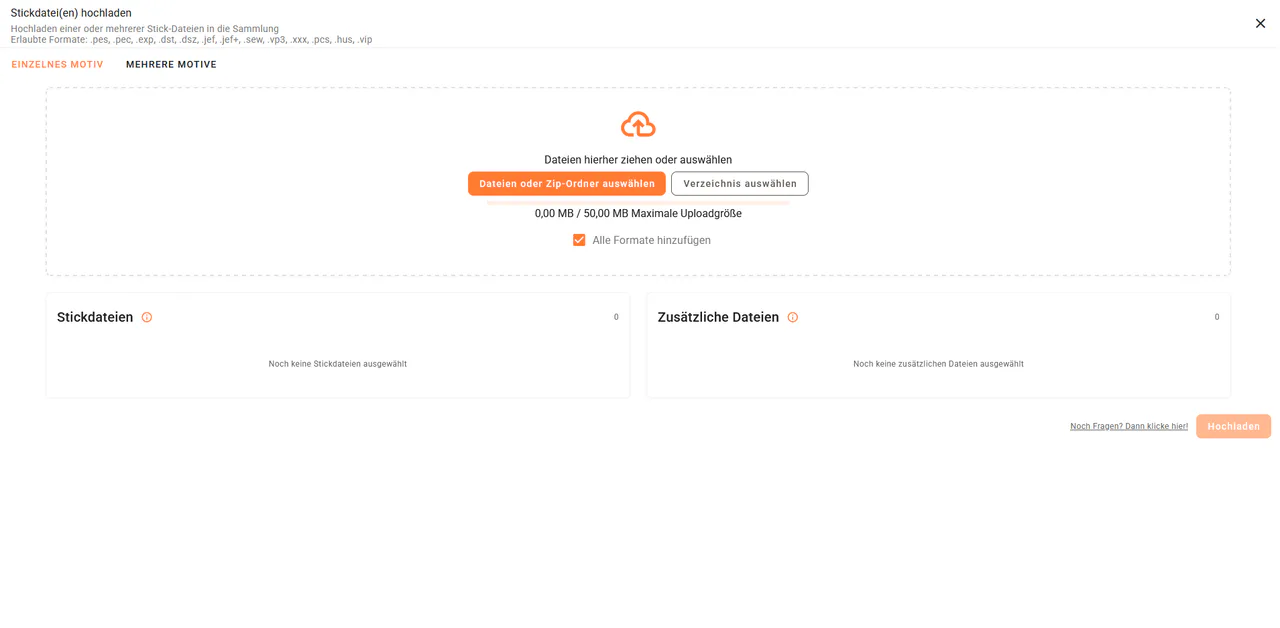
You can upload your existing embroidery files to emborado and organize them there. When you upload multiple files, emborado helps you group related formats under a single design.
Our guide to uploading multiple embroidery designs at once walks you through the process.
Your existing folder structure on your computer can stay as it is while you get started.
Can I also detect duplicate embroidery files?
Large libraries often have another problem: the same embroidery file may have been downloaded more than once or saved in several folders.
emborado includes duplicate detection during upload to help with this.
The check looks at the file’s content, rather than just its name. It can therefore recognize a renamed copy of an embroidery file already in your library.
Read our guide to detecting duplicate embroidery files during upload to learn how to review a match and decide whether to proceed with the upload.
From a file list to a visual embroidery library
Missing previews may seem like a small inconvenience at first. As your embroidery library grows, they have a much bigger impact.
Opening every design just to find out what a file contains adds unnecessary time to your search.
Visual embroidery file management changes how you browse. You no longer need to know a file’s name to recognize what is inside it.
With emborado, you can manage your embroidery files in one place, view previews and organize designs with additional information.
A folder full of PES, DST, JEF and other files becomes a searchable visual library.
Ready to see your embroidery designs instead of just their filenames?
Keep your embroidery designs together in emborado and get automatic visual previews for your library.