How to Organize Embroidery Designs: When Folders Stop Working and What to Do Instead
A practical guide to organizing machine embroidery designs: a folder system that works at the start, the point where it leads to duplicates and lost files, and how a cloud-based design library keeps a growing collection searchable.
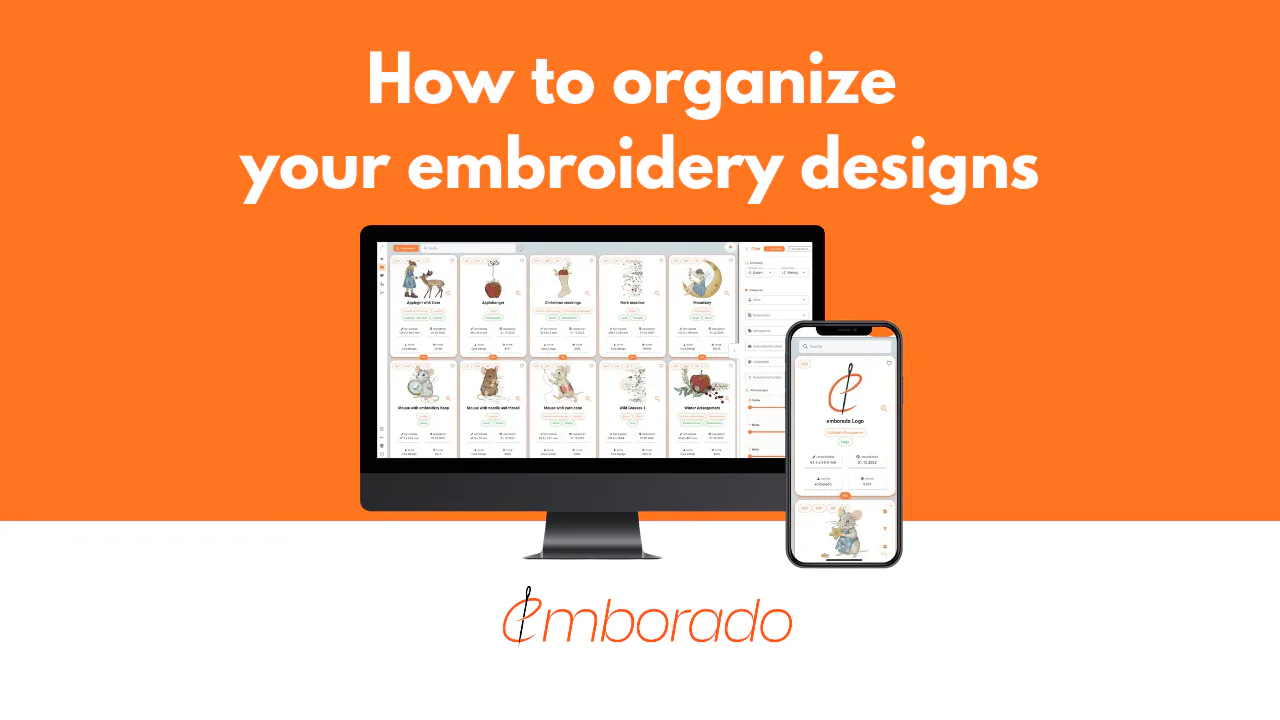
Most embroidery libraries start small and tidy. A few purchased sets, a handful of freebies, one folder called Embroidery. A year later there are 2,000 files across a downloads folder, three USB sticks and a ZIP archive called designs_final_2.zip, and the fox you bought for a fall project is somewhere in there.
This guide explains why embroidery designs are harder to organize than photos, how to set up a folder system that holds up for a while, where that system starts to fail, and how a cloud-based design library solves the problems that folders cannot.
Contents
- Why embroidery files are hard to organize
- A folder system that holds up
- Where folders stop working
- A cloud-based design library
- Moving an existing library without reorganizing it first
- Five habits that keep any library tidy
Why embroidery files are hard to organize
Three things make embroidery designs harder to manage than photos or documents.
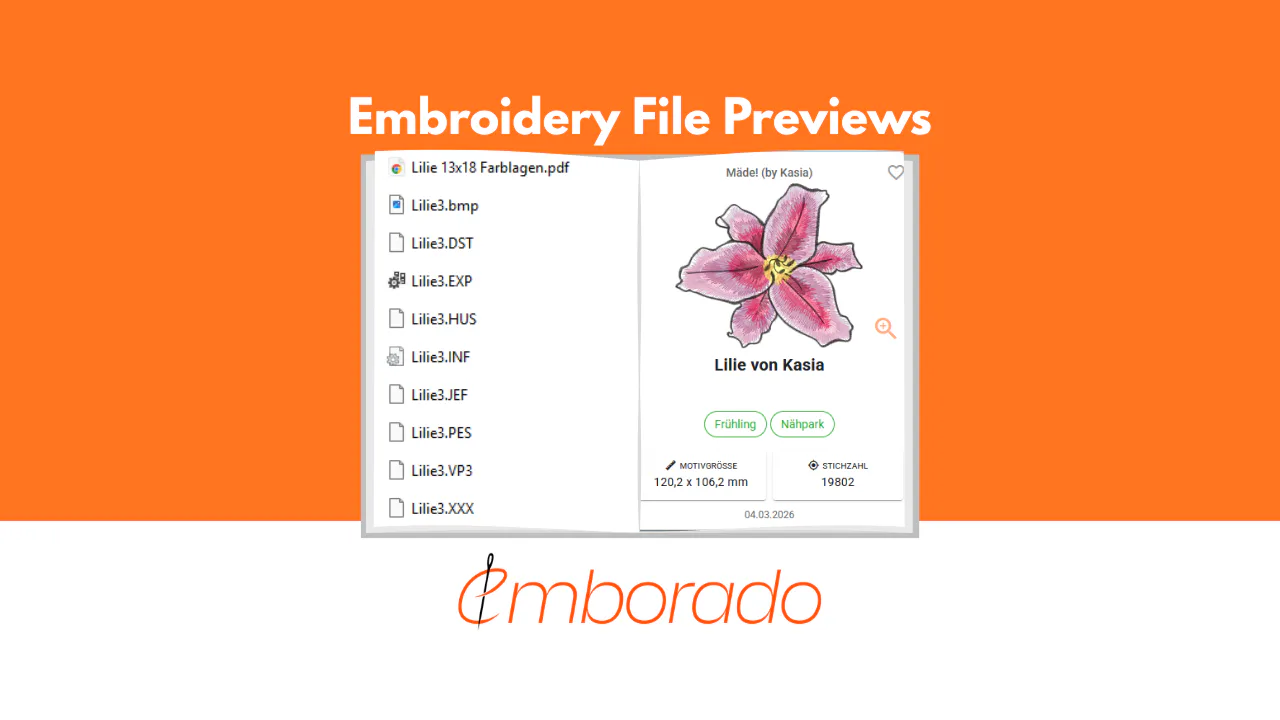
You cannot see them. Windows Explorer and macOS Finder show previews for JPG and PDF files, but a PES, DST or JEF file is a set of stitch instructions, not an image. Without extra software you see an icon and a filename. We cover the details in our guide to embroidery file previews.
One design is many files. A purchased design usually ships in five or six formats, often with a PDF color sheet and a JPG preview. A set of 20 designs can mean 150 files, and your folder count grows faster than your design count.
Filenames carry no meaning. CSD1234_05.pes tells you nothing about the motif. Designers name files for their own catalog, not for your search a year later. Our overview of embroidery file formats explains why there are so many of them in the first place.
A folder system that holds up
Folders are free, work everywhere and need no software. They are a fine starting point, as long as you pick one structure and stick to it.
The two structures that work best in practice:
By designer, then by set. Designs > Designer name > Set name. This mirrors how you buy designs, so filing a new purchase takes seconds. It also makes it easy to find the original ZIP and license terms later.
By theme. Designs > Animals > Woodland, Designs > Holidays > Christmas. This mirrors how you search when starting a project. It takes more effort to file, because you have to decide where a fox with a Christmas hat belongs.
A few rules make either structure last longer:
- Unzip every purchase once and delete the ZIP, or keep ZIPs in a separate
Archivefolder. Searching inside ZIP files is not possible on most systems. - Keep all formats of one design together in one folder. Do not split your library into
PES,DSTandJEFfolders, because you will end up with three copies of the same structure. - Keep the designer’s preview image next to the stitch files. It is often the only way to see the design without opening it.
- Never rename stitch files. Designers and support teams identify designs by their original filenames.
Where folders stop working
With a few hundred designs, a well-kept folder system does its job. Somewhere between a few hundred and a few thousand designs, the same problems show up for almost everyone.
A design can only live in one place. A fox for fall belongs in Animals and in Autumn. The only way to have it in both is a copy, and copies are how duplicates start. A few months later you have two folders with slightly different versions of the same set and no idea which one is current.
You buy designs twice. When you cannot see what is in your folders, you stop checking before you buy. Most embroiderers with a large library have purchased a design they already owned at least once. With freebies the problem is bigger, because they get downloaded whenever they come around again.
You stop trusting the structure. One purchase filed in the downloads folder “for now”, one set that stayed in its ZIP, one USB stick from a class. Each exception is small. Together they mean the folder system no longer tells you what you own.
Devices multiply. The library lives on the computer in the sewing room. Then you want to check it on the laptop, on a tablet at the fabric store, or on the second machine. Sync tools help, but they also sync every duplicate and every half-finished reorganization.
Search only finds filenames. When you remember “small fox with a scarf” but not CSD1234_05, folders cannot help. You end up opening files one by one or scrolling through preview images that may or may not be next to the right stitch file.
None of this is a discipline problem. Folders were built for documents with readable names, not for stitch files that come in six formats and only make sense as a picture.
A cloud-based design library
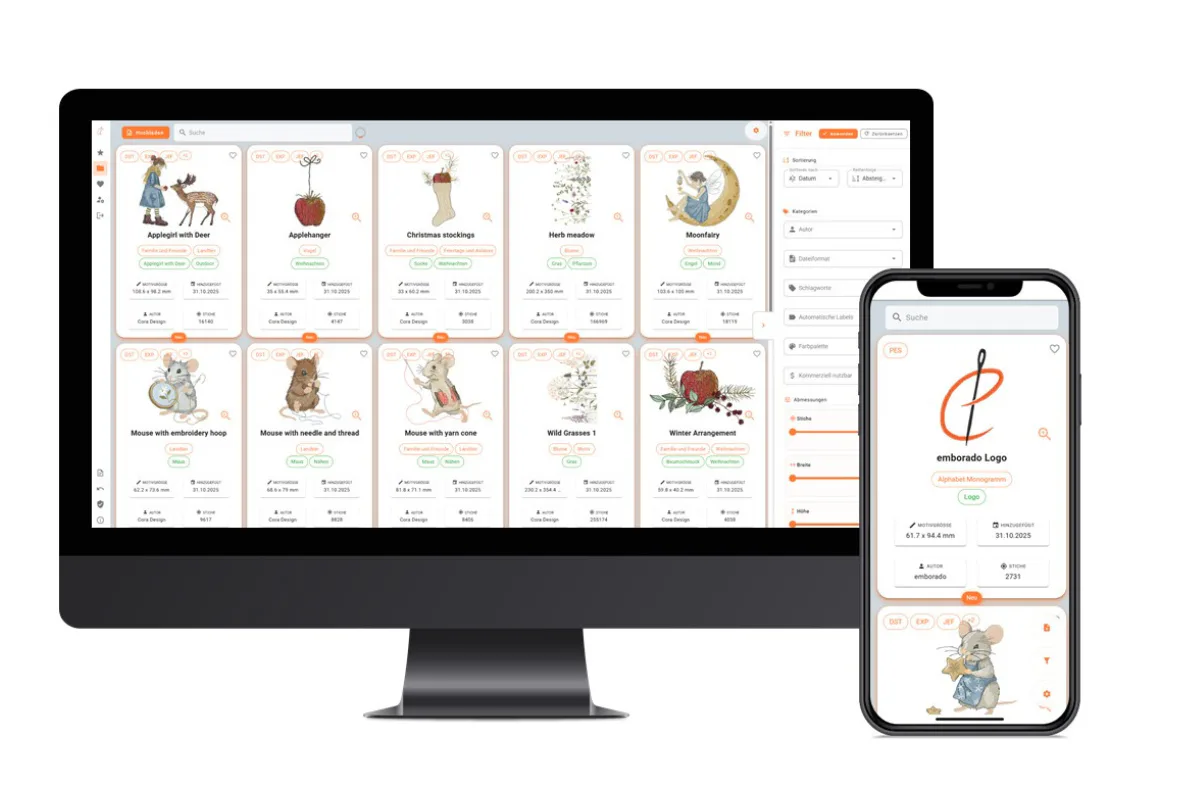
A design library takes a different approach. Instead of organizing files, you organize designs. You upload your files once, the library renders previews, reads the information inside the files and makes everything searchable from any device.
This is what we built emborado for. The honest summary of what it does:
- Previews are generated from the stitch files themselves for PES, DST, JEF, EXP, VP3 and other common formats, so you do not depend on the designer’s JPG and never have to guess from a filename again.
- One design, not six files. All formats of a design are grouped as one design. A library of 3,000 files shows up as 500 designs, which is what you actually own.
- Search works on design content, not only on the filename. “Fox” finds the fox, whatever the designer called it. Our article on content-based search explains how it works.
- Duplicates are caught at upload. The check compares file content, so a renamed copy of a design you already have is flagged before it enters your library. See how duplicate detection works.
- A design can be in several places. Collections let the fox sit in “Autumn” and “Animals” and “Towel ideas” without a single copy.
- It runs in the browser on Windows, Mac, iPad and Android, with no installation. The library you see in the sewing room is the same one you see at the fabric store.
- Technical details come for free. Size, stitch count and colors are read from the file during upload, so you can filter by hoop size instead of opening each design to check.
What it does not do: it does not edit, resize or digitize designs. For that you keep using your embroidery software. emborado is the place where you find the design, and from there you take it to the machine or the editor.
The free plan covers 100 designs, which is enough to try it with the sets you use most. A subscription removes the limit.
Moving an existing library without reorganizing it first
The step most people worry about is the move. If you have thousands of files in a structure that has grown over years, renaming or sorting them first would be weeks of work.
You do not need to. You can drag in entire folders or ZIP archives as they are. During upload, related formats are grouped under one design, duplicates are flagged, and previews and metadata are generated automatically. Your folders on the computer can stay exactly as they are; nothing is deleted or moved there.
Two guides walk through this in detail: uploading multiple embroidery designs at once and our best practices for setting up designs.
A practical order that works well: start with the designs you use most, then add one designer folder at a time, and let duplicate detection tell you which sets you already had.
Five habits that keep any library tidy
Whether you stay with folders for now or move to a design library, these habits do most of the work.
- File purchases the same day. A design that sits in the downloads folder for a week is a design you will buy twice.
- Keep the original ZIP or the designer’s folder structure in an archive. Licenses and support questions refer to it.
- Tag by use, not only by motif. “Towels”, “baby gifts” and “in the hoop” are the tags you will search for when a project comes up.
- Check for duplicates before adding a set. In a design library this happens automatically; with folders, search for the designer’s set name first.
- Back up outside your computer. A cloud library does this by design; with folders, an external drive plus a cloud sync folder is the minimum.
If your library has outgrown folders and you want to see your designs instead of their filenames, you can manage your embroidery designs in emborado free of charge for up to 100 designs.